Feature Story

Windows 11 Backup Settings with Tiffany Weber blog

Looking for Windows 11 Backup Settings? Here It Is
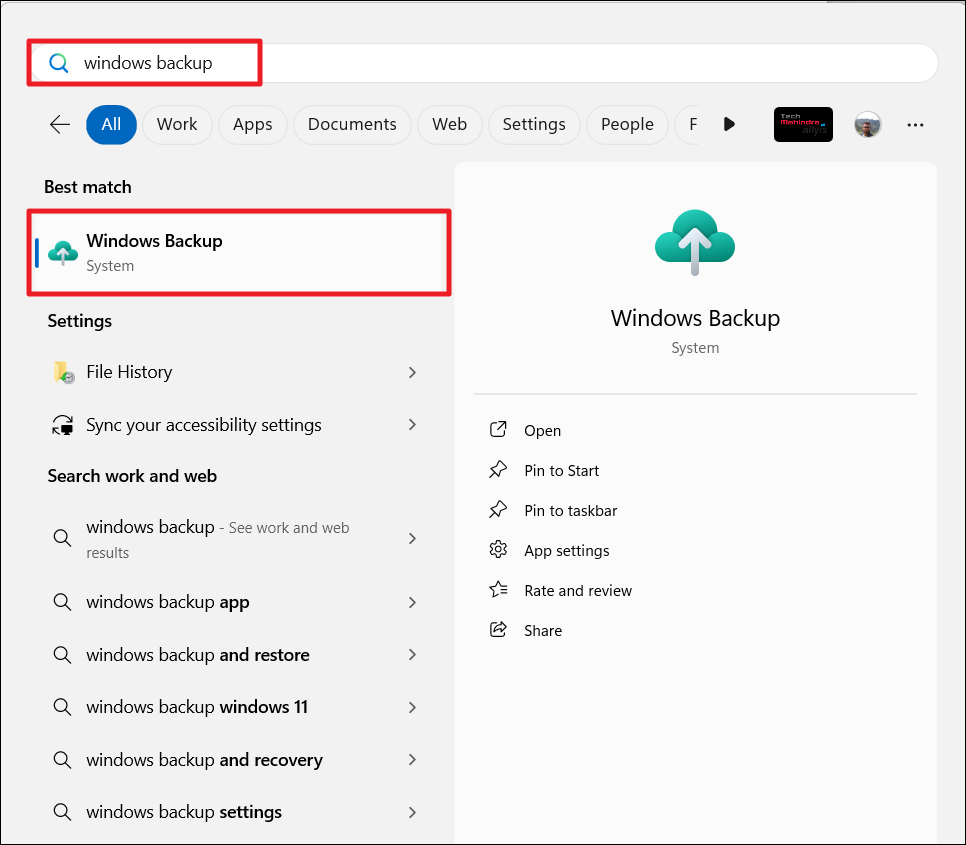
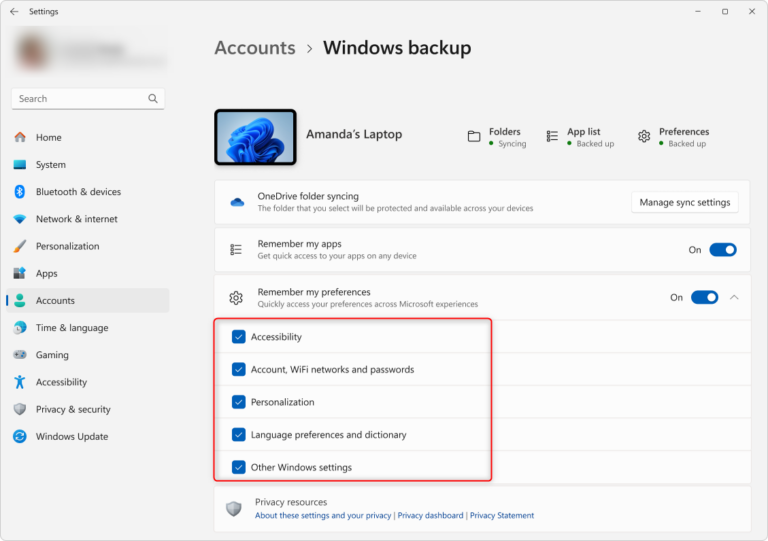
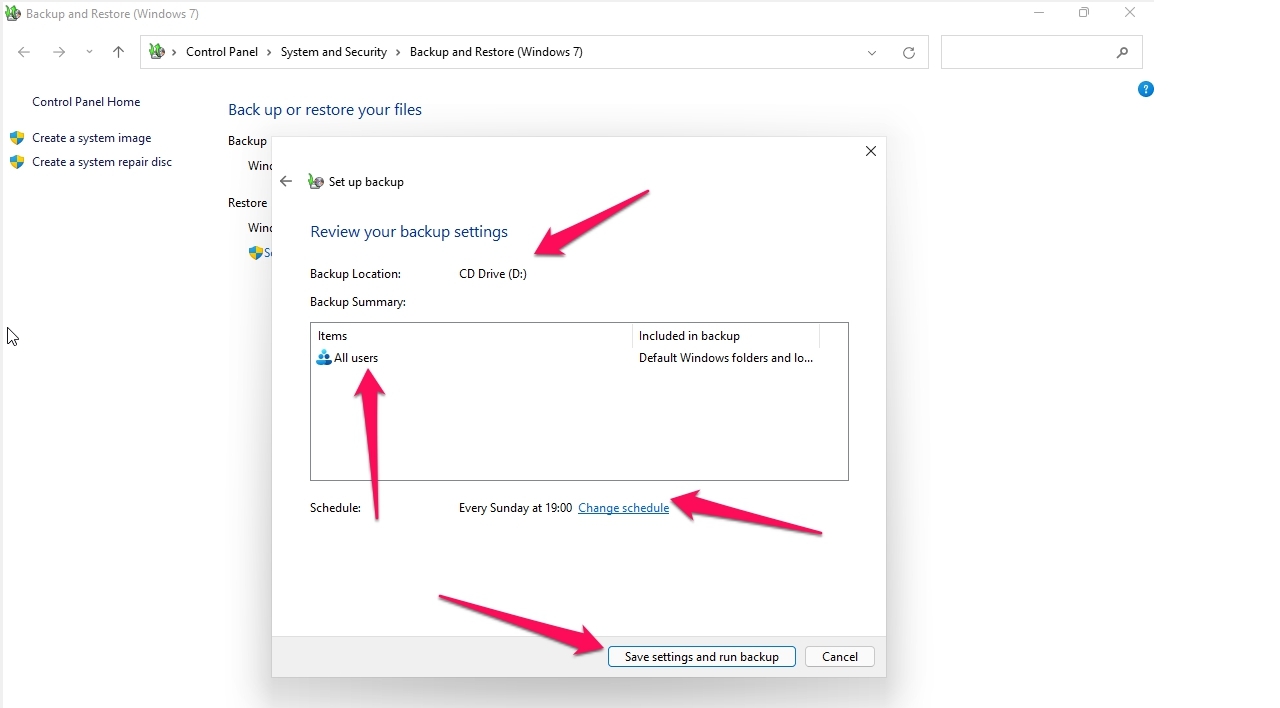
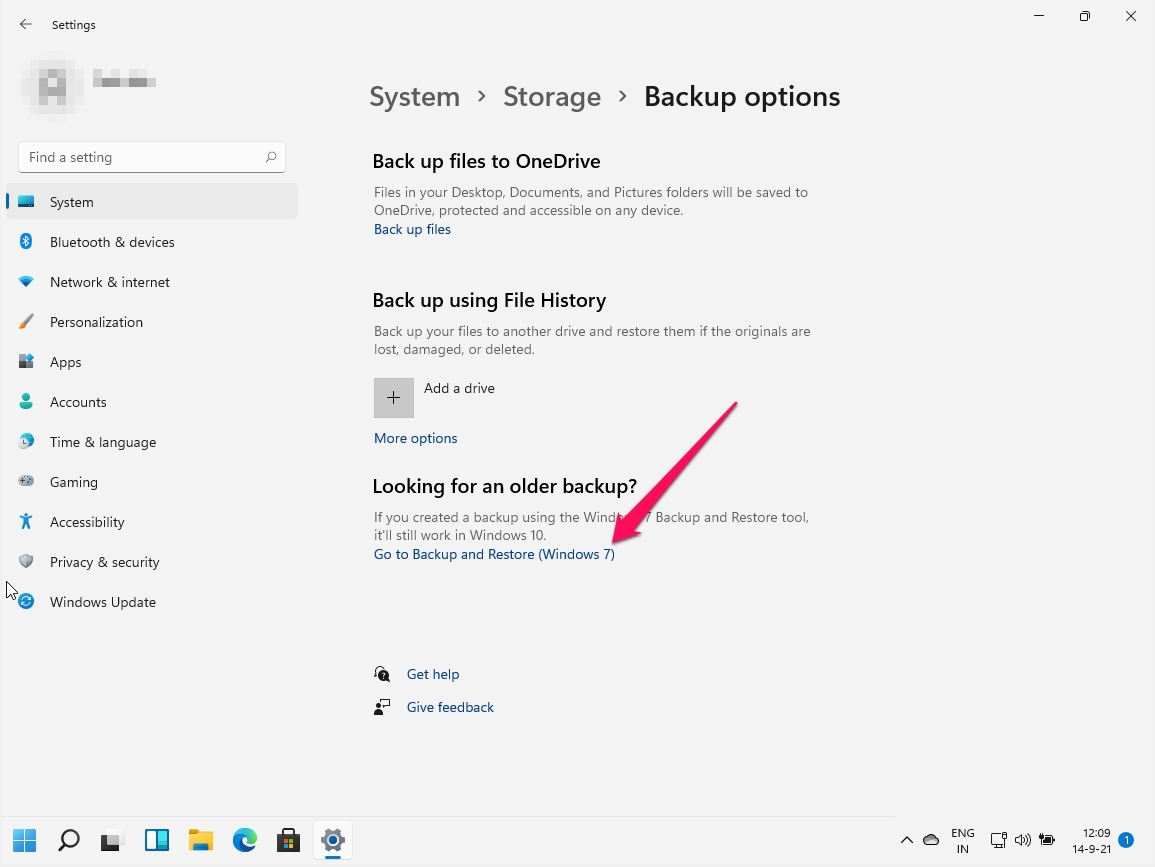
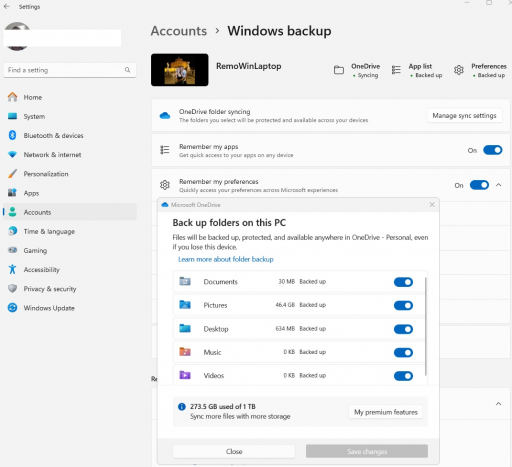
How to backup Windows 11 PC

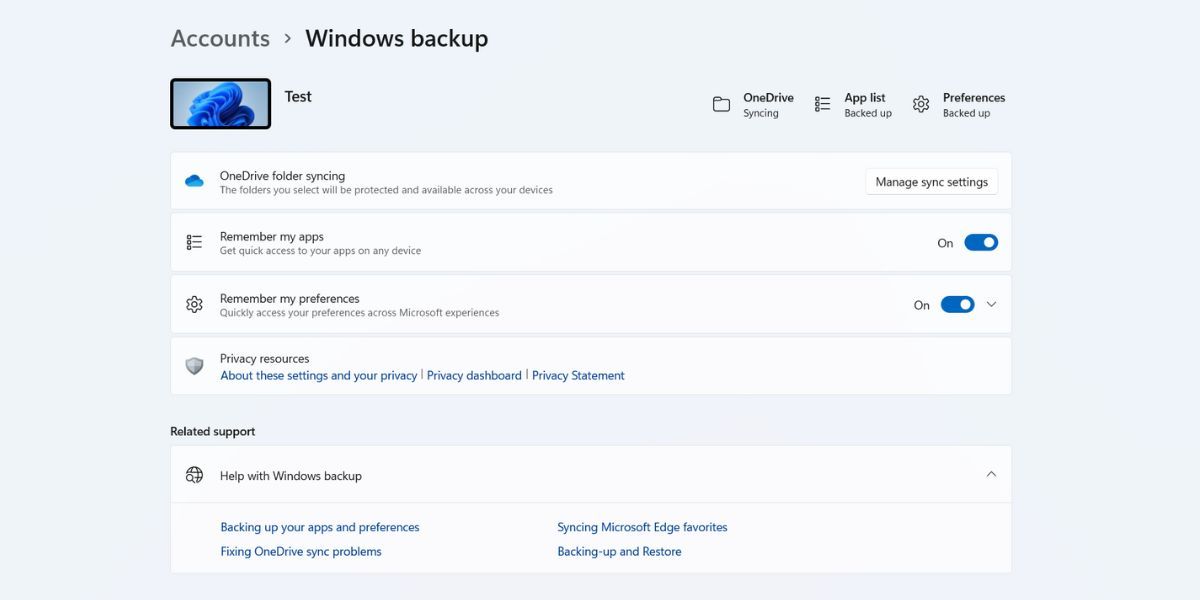
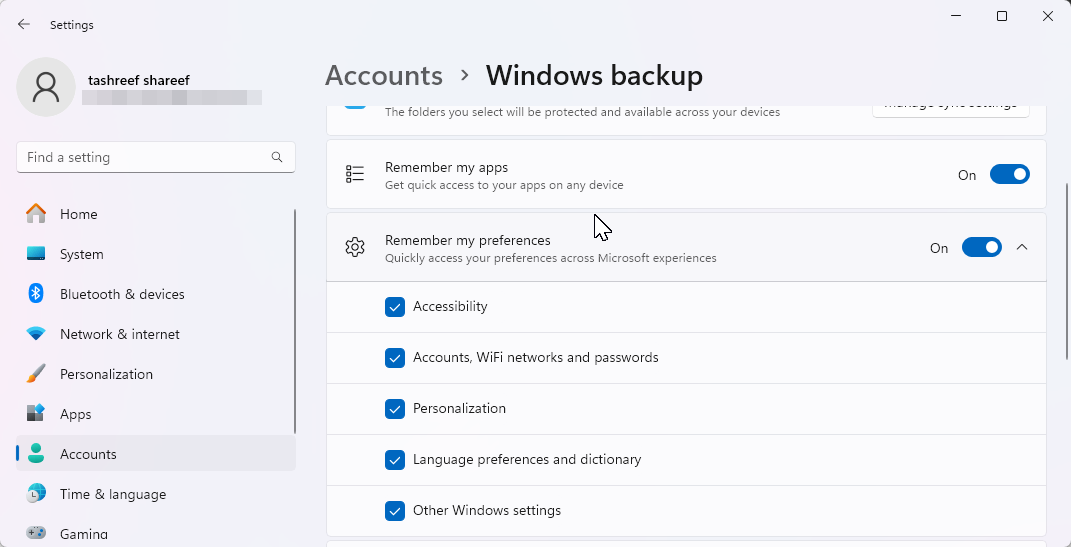
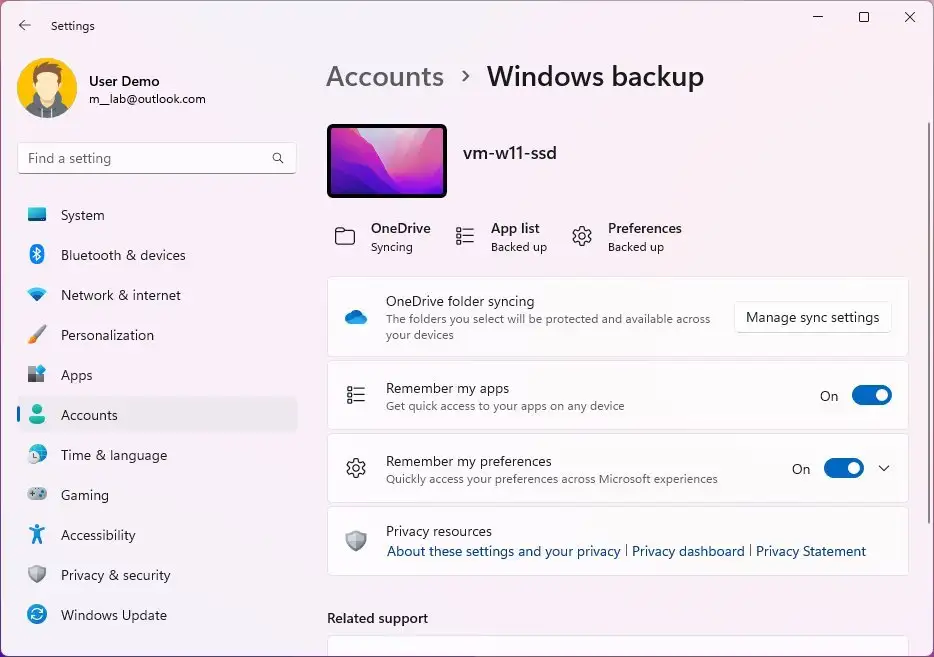
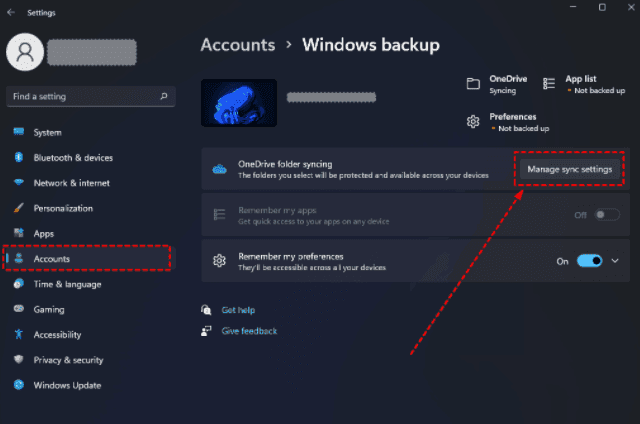
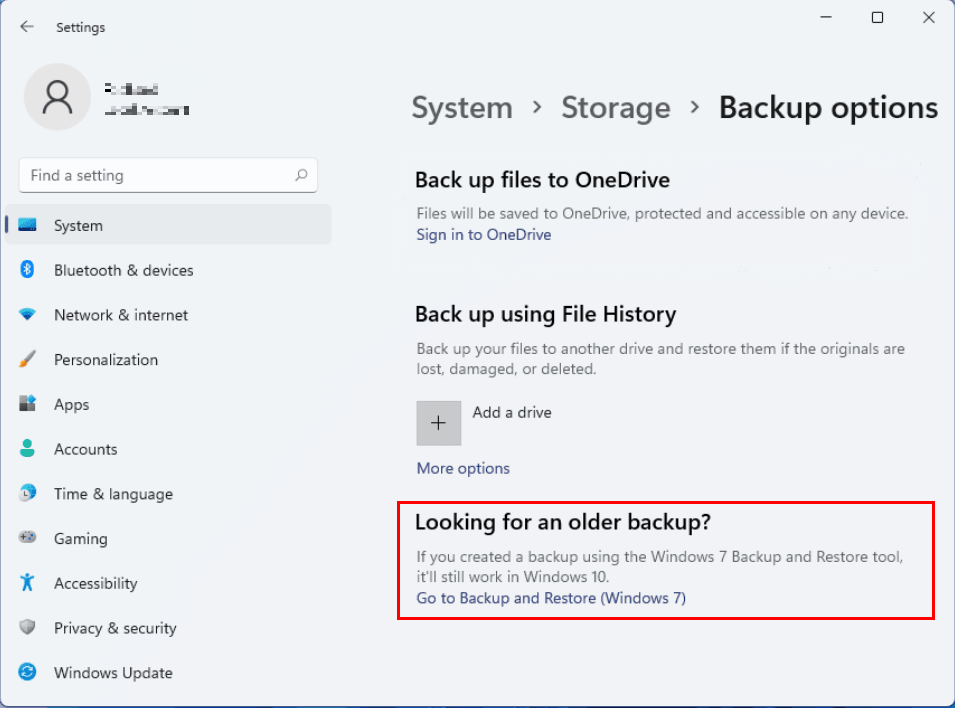
You came here for Windows 11 Backup Settings, and everything below is exactly that, supported by a wide range of real example pictures for reference.
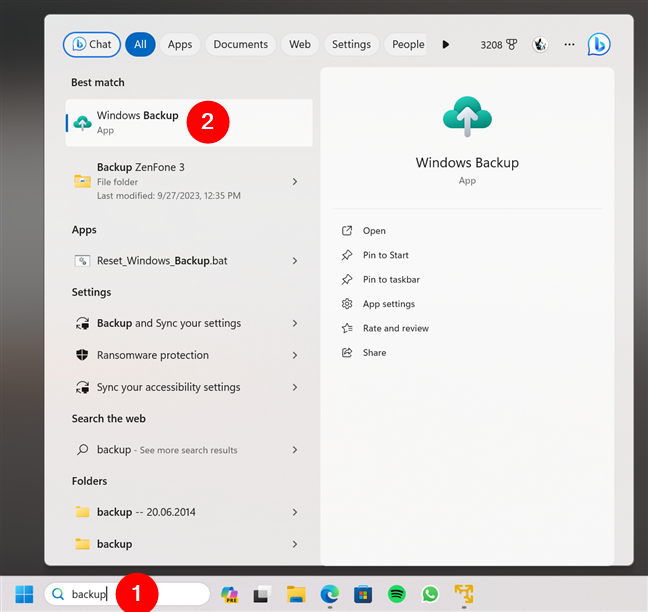
How to make a backup with the new Windows Backup app

Reading about something is one thing; seeing it is another, so looking at real examples explains far more than any description can.

Example Images of Windows 11 Backup Settings
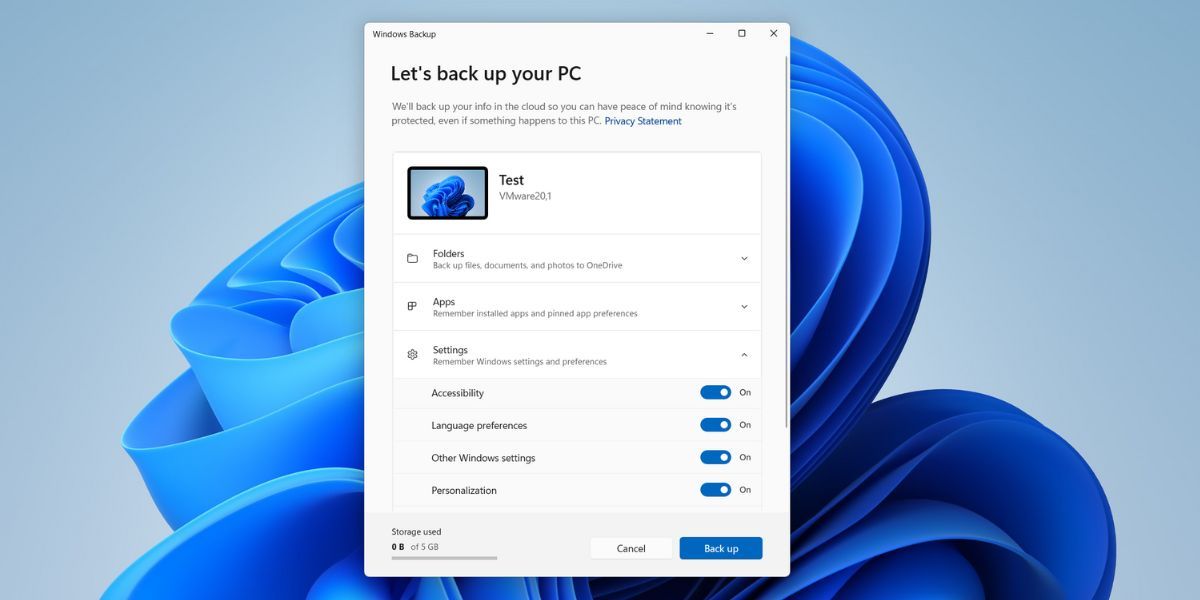
How Does Windows 11's New Backup Feature Work?

Each picture captures Windows 11 Backup Settings from a different angle or context, giving you a fuller picture than any single example could.

Let the gallery speak for itself as you move downward, and familiarity builds faster than you might expect.
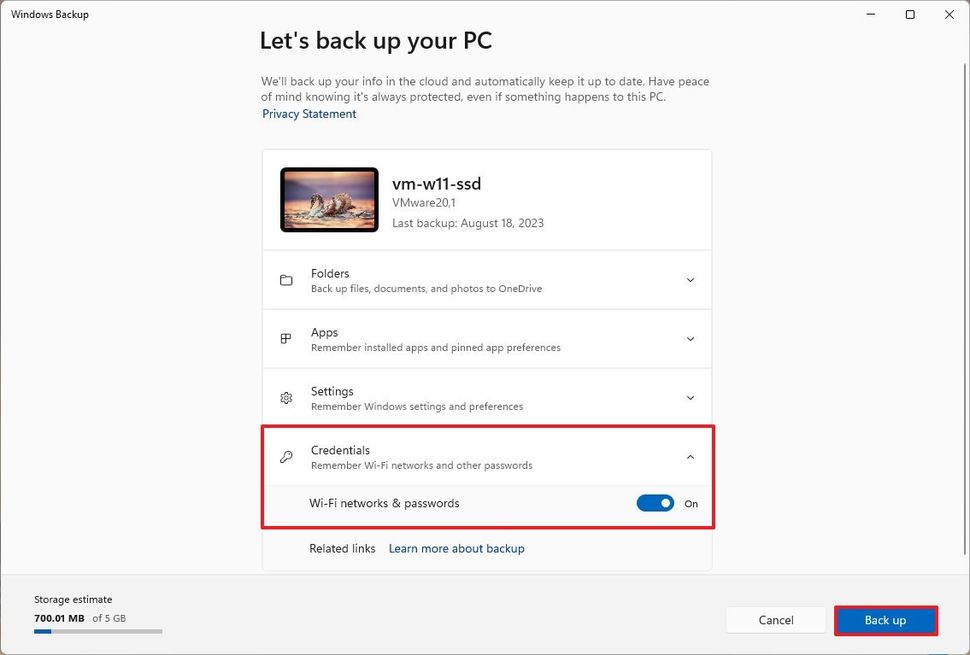
How to use the new Windows 11 Backup app | Windows Central

What These Pictures Explain

Think of each example as a visual definition, capturing exactly the kind of details people usually ask about.

Compare a few examples and observe what repeats, because consistent details are usually the essential ones.
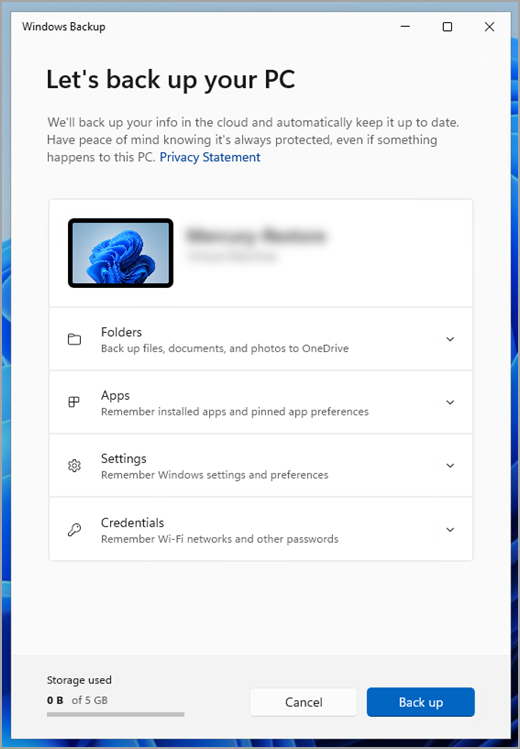
Windows 11's new Backup app: Everything you need to know | PCWorld

Many Forms and Variations

There is a surprising range of styles and interpretations here, some are simple and minimal, others are bold and detailed, which helps you quickly narrow down what you actually want.

Notice which image makes you stop scrolling, and it often matches what you will want in the end.
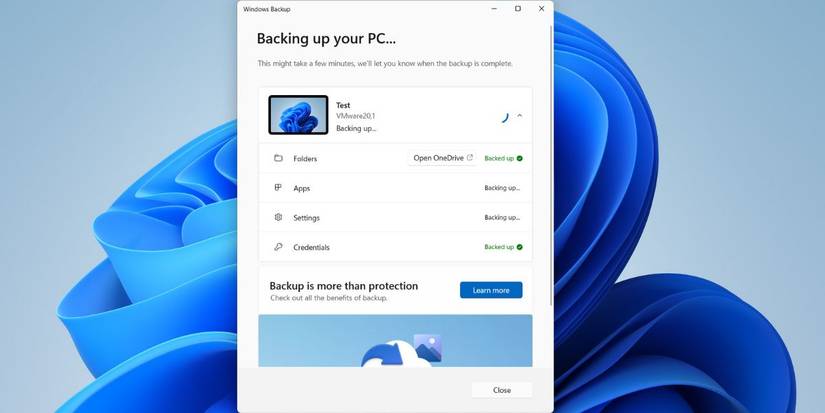
How Does Windows 11's New Backup Feature Work?

Making the Most of the Gallery

Treat the gallery as a practical tool rather than decoration, like marking the images that match your idea.
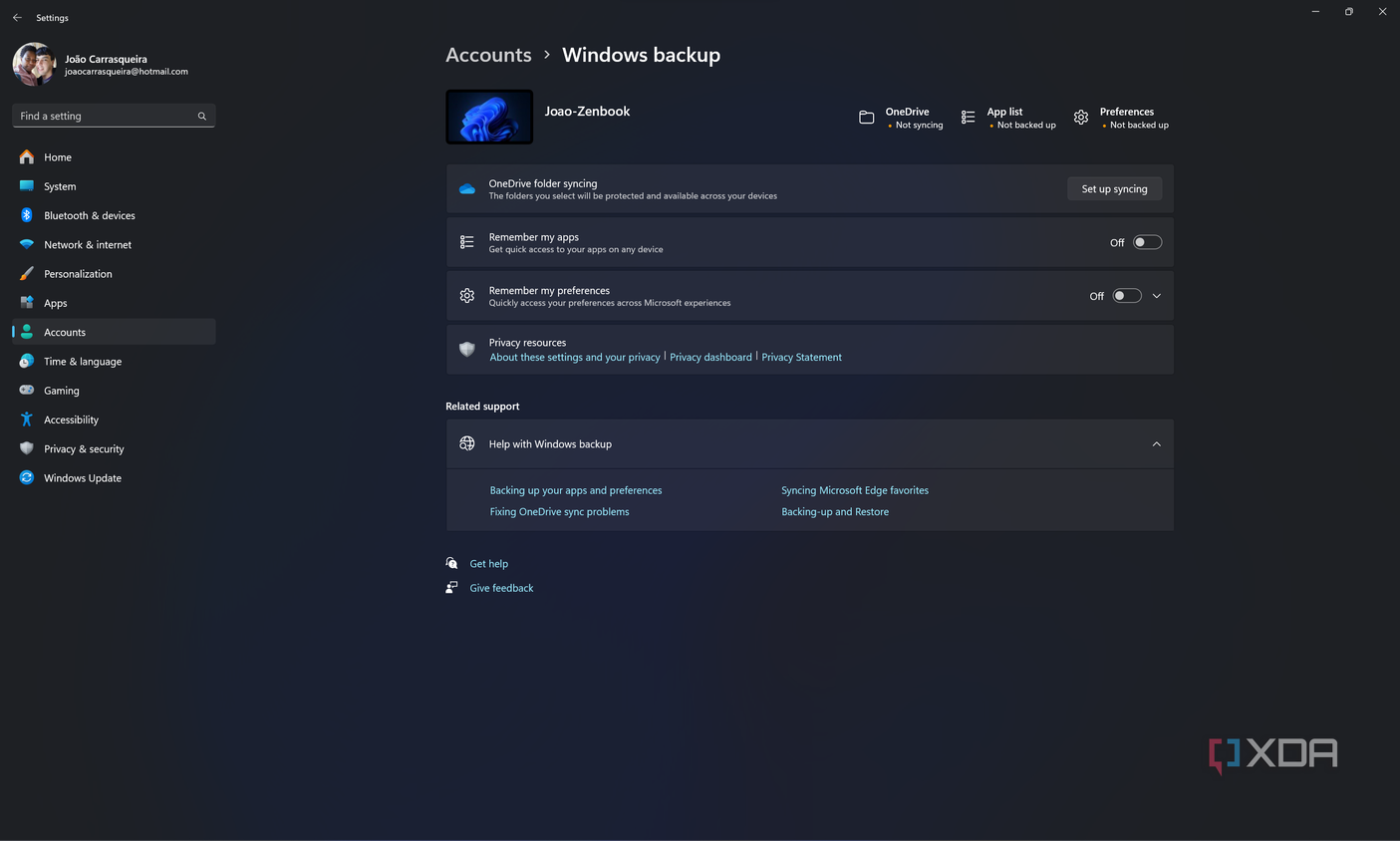
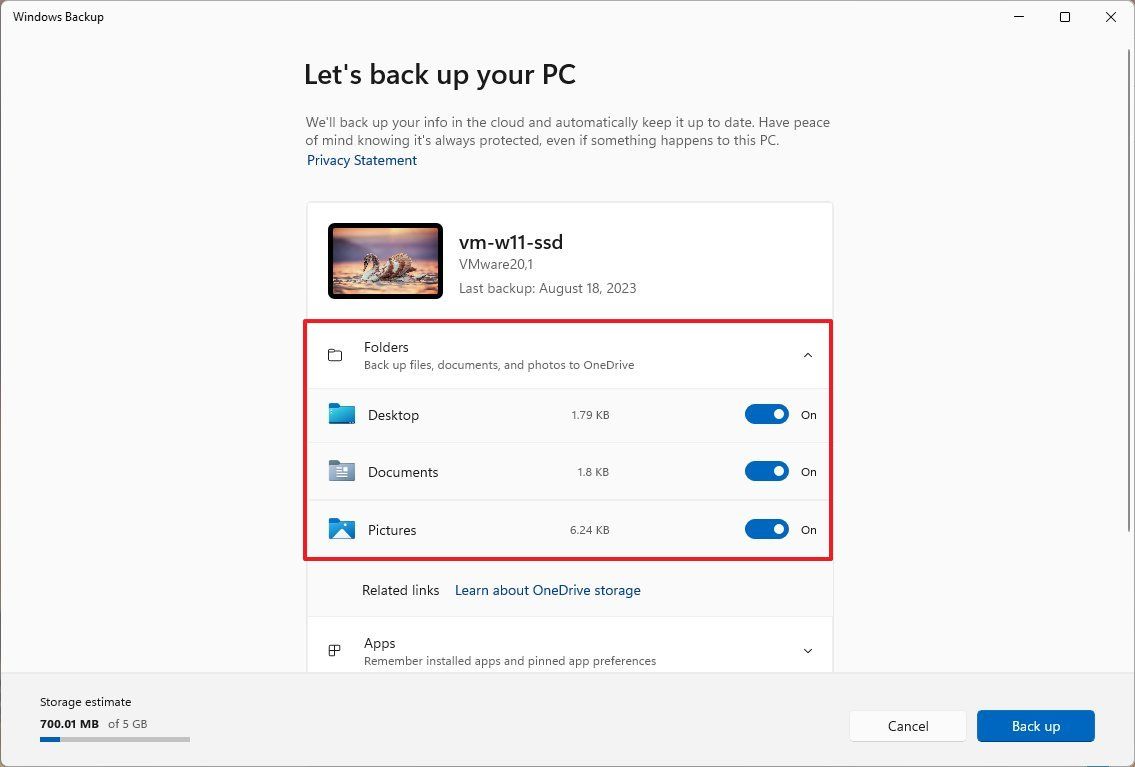
How to quickly (and securely) back up all your devices
How to use the new Windows 11 Backup app | Windows Central
Windows 11: 9 hidden changes you may have missed | Windows Central
Windows 11 gets new cloud based Backup app - Pureinfotech
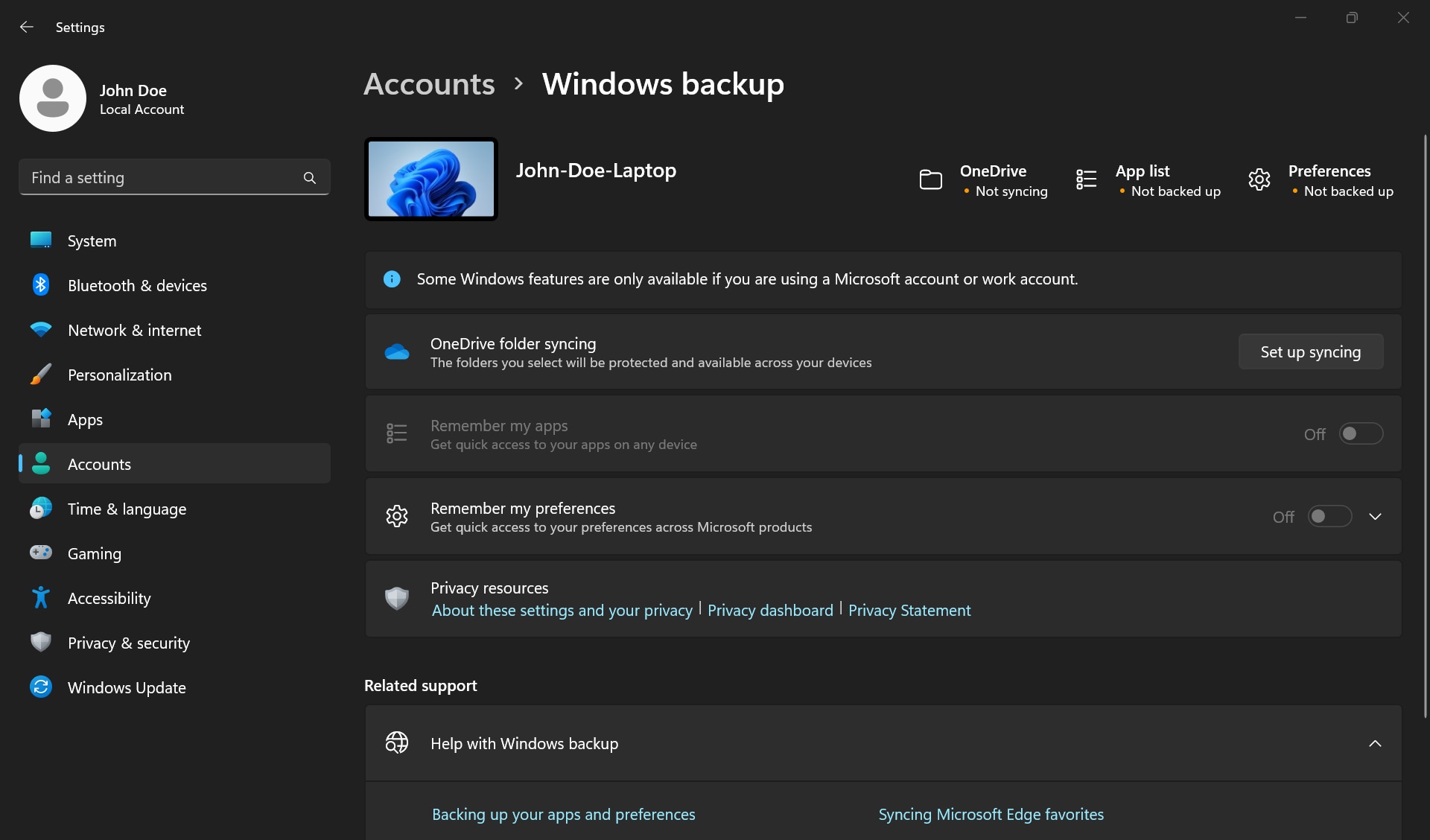
How to Modify your Windows backup Configuration in Windows 11 | Geek Rewind
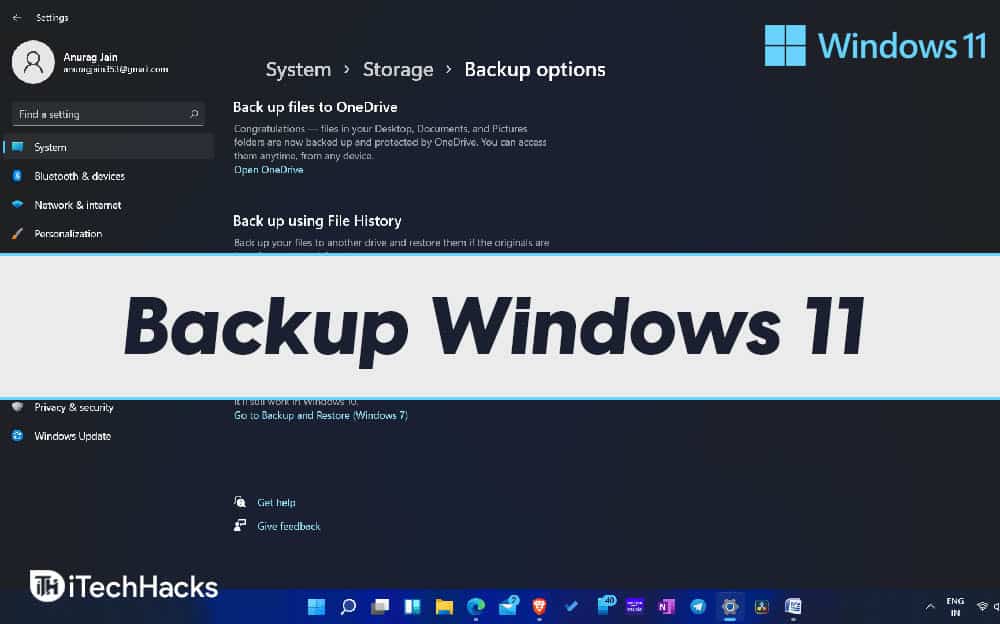
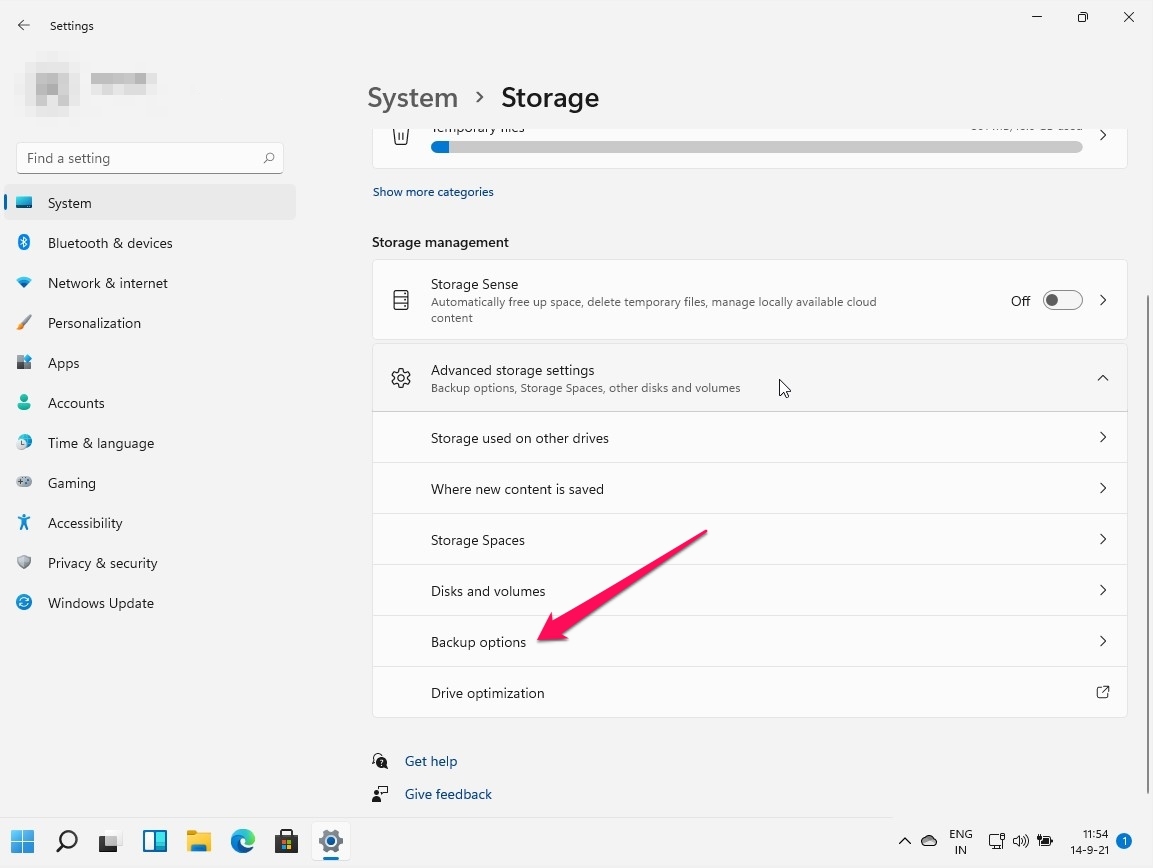
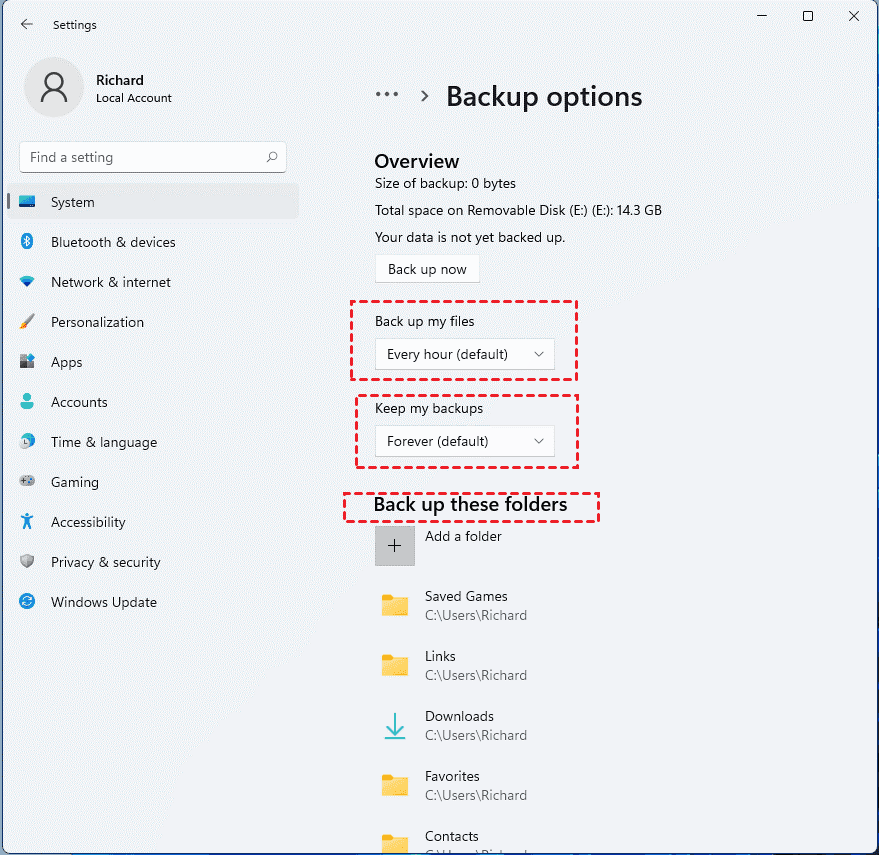
Backup Options
Backup Options
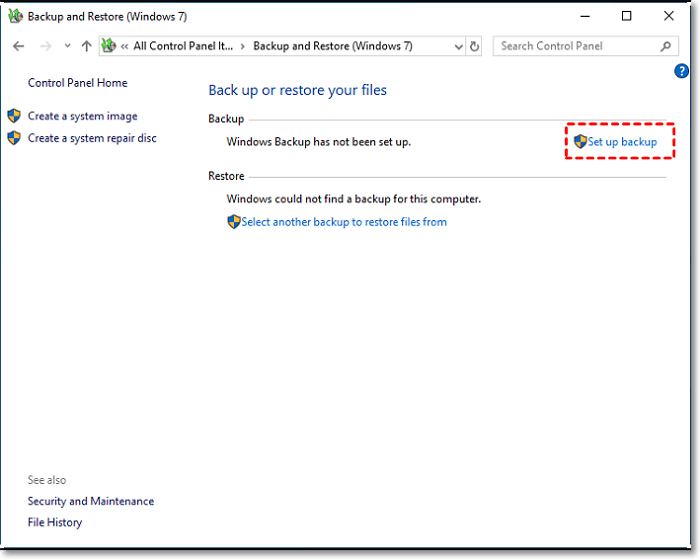
Backup Options Windows 11 _ How to Make System Image Backups on Windows ...
Best Windows 11 Backup Utilities
Microsoft Windows 11 23H2 - What is Windows Backup and how can I use it?
Windows Backup On Windows 11 at Jason Rocha blog
Back Up Your Files and Keep Your Data Safe | Dell Indonesia
How to Create a Full Backup of Your Windows 11 PC
How to create a Windows 11 backup – step-by-step guide - IONOS CA
3 Easy Ways to Windows 11 Local Backup | Quick Guide
Best Windows 11 Backup Utilities
How to backup your Windows 11 computer using Windows Backup and File ...
Backup Windows 11 Windows 11 Is Getting A Redesigned Settings Homepage
How to create cloud backup on Windows 11 - Pureinfotech
How to use new Windows Backup app to create cloud backup in Windows 11
How to Create a Full Backup of Your Windows 11 PC
How Does Windows 11's New Backup Feature Work?
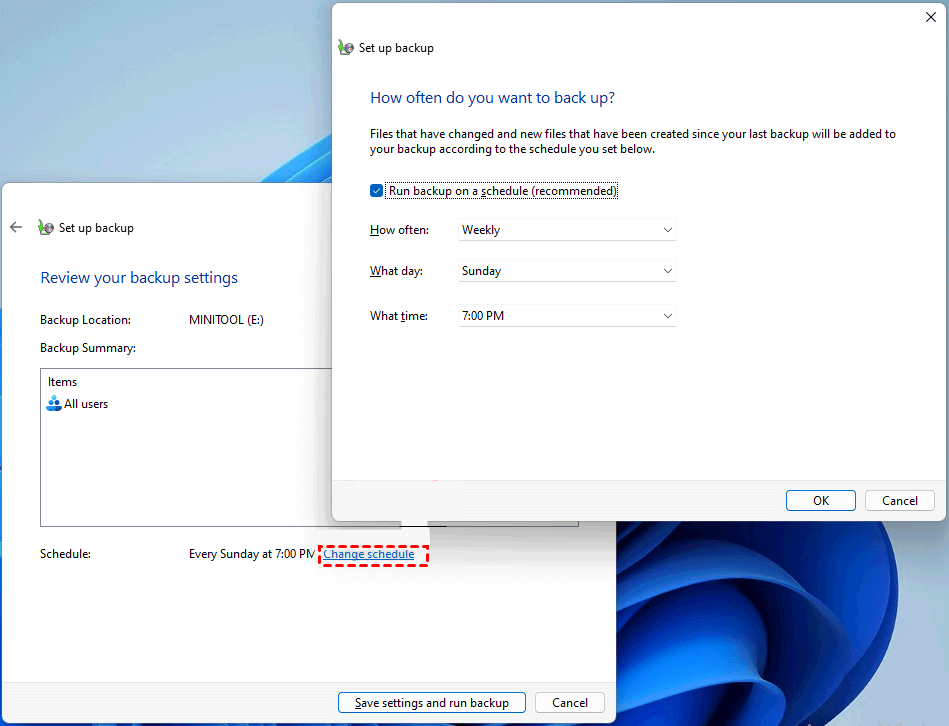
6 Ways to Set up Automatic Backup on Windows 11
Here's How I Properly Back Up My Windows 11 PC
How to use windows 11 backup settings important features – Artofit
Windows 11 gets new cloud based Backup app - Pureinfotech
How to backup Windows 11 PC
How to Use Windows Backup App in Windows 11? – WebNots
4 Backup Options Come with Windows 11 to Protect Your PC
How to Make a Bootable Backup on Windows 11 (3 Free Ways)

You can also use the images to explain the idea to someone else, and alignment happens in seconds instead of paragraphs.

What to Notice in Each Picture

Slow down and examine fewer images more carefully, such as positioning, scale, material feel, and overall balance.

Depth beats speed when it comes to visual learning, so instead of racing through all the examples, study a handful properly.

Seeing Is Understanding

Our preference for images is not a trend, it is how understanding works, an image delivers the subject directly with no filter.

This is precisely why galleries like this one are valuable, be it ideas, verification, or simply knowing what to call it.

The Reference Is Here Whenever You Need It

Keep this gallery close for whenever the question resurfaces, and a fresh look at the same gallery often reveals something new.

The more examples you absorb, the sharper your eye becomes, and let the gallery keep doing what it does best.